
When you click on the button below, the printable directory will be generated and downloaded to your computer. You can then open the file in Word. See below for details on what data is displayed in the directory and troubleshooting tips.

Details
The membership printed directory uses information for your chapter's current members and produces a Word document that can be printed as is, or used as the starting point for a chapter directory with additional information.
When you click on the button, the directory is downloaded to your disk and can be opened in Word.
Where does the information come from?
The information in the printed directory comes from the CiviCRM contact records for those members with a current membership record. These are records with a status of "Current", "Grace, "New" or "Pending". If someone is not showing up in the printed directory, check to be sure they have a current membership record. If you see someone in the directory twice there are probably duplicate contact records that need to be merged.
What information is in the printed directory?
Here is a sample entry.
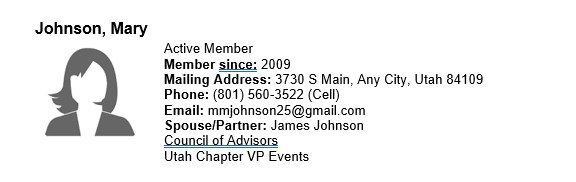
- Image - Upload pictures of your members by finding their contact record, clicking on "Edit" and scrolling down to the field "Browse/Upload Image" and click on "Choose File". This brings up a file explorer and you can navigate to the directory with the photo, click on it and chose "Open". This will upload the image. After you select "Save" this image will be visible on the contact detail page and will be used in the printed directory.
- Last Name - Individual:Last Name
- First Name - Individual:First Name
- Membership type (without the chapter designation)
- Member since - This is the minimum start date of all active memberships
- Mailing address - The primary address for the contact
- Telephone - The primary phone is listed as well as a cell number (if they are different)
- Email Address - The primary email address
- Spouse/Partner - This name (and nickname, if it is different than the firstname) is from the contact record with the relatiionship "Spouse / Significant Other of" rather than the "Spouse/Significant Other Name" field in the "General Information" associated with the member's contact record.
- National Leadership Position - This field is populated by the National Organization and used as part of the National Membership Directory. If it is blank, it will not show up. Although this field is editable, be aware that this might be overwritten by a process that National will use to update the field so should not be used by chapters.
- Chapter Leadership Position - This field may be used by chapters to indicate Chapter leadership positions. Edit this field by scrolling down to the last entry on the left side of a contact record and selecting "Leadership Positions". In the window that comes up, click on "Edit Leadership Positions" to change the value of the Chapter Leadership Position. If this field is empty, it will not appear in the directory.
Formatting tips
The printable membership directory is generated as a Word "doc" file and can be opened with Microsoft Word or other applications that recognize the ".doc" file format. One of the problems we were not able to overcome was keeping an entry together. You can fix this in the document by highlighing a section and clicking on "Keep with next" in the Paragraph "Line and Page Breaks" tab as shown below.

The document can be printed as is, or can be formatted with page numbers, introductory pages, etc. It is a regular Word document.
Trouble shooting data issues
- Occasionally a member will be in your directory, but with a membership type that isn't one from your chapter. If this happens, contact is.help@arcsfoundation.org for help removing this membership.
- When you view the Word document, the images don't show up. Usually this problem goes away if you click on the option to edit the document.
- You see the following warning:

You can safely click "Yes" to this warning. You are viewing a document from a safe source.